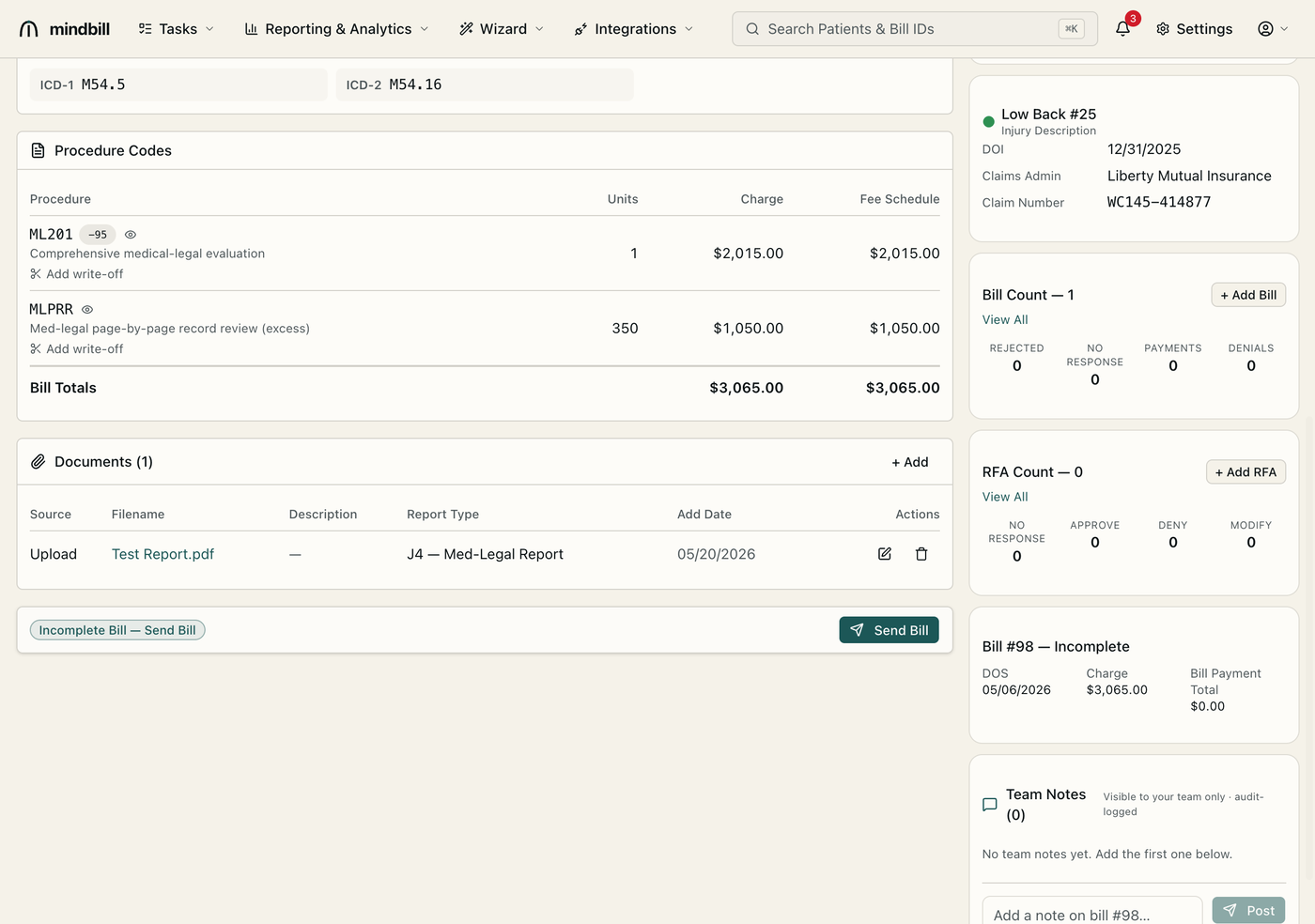
Step 1 — Open the Documents panel on the bill
Open a bill (here, #98) and scroll to the Documents panel. It lists every file attached to the bill with its source, filename, description, report type, and add date — e.g. an uploaded 'Test Report.pdf' tagged 'J4 — Med-Legal Report.' The J4 report type is the QME/AME medical-legal report itself; other types cover prior EORs, the sender declaration, and correspondence. The count next to the panel header (Documents (1)) shows how many are attached.
Step 2 — Add the report and the sender declaration
Click + Add to attach a file — upload from your device or pull from the Document Library. The two that matter most for med-legal: the J4 medical-legal report (always required), and the LC §4062.3 sender declaration whenever the bill includes MLPRR (record review beyond the included 200 pages, billed at $3/page). Without the declaration attesting the page count under penalty of perjury, the MLPRR line is the single most-rejected med-legal charge — so attach it before you send.
Step 3 — Let the scrub enforce the required report
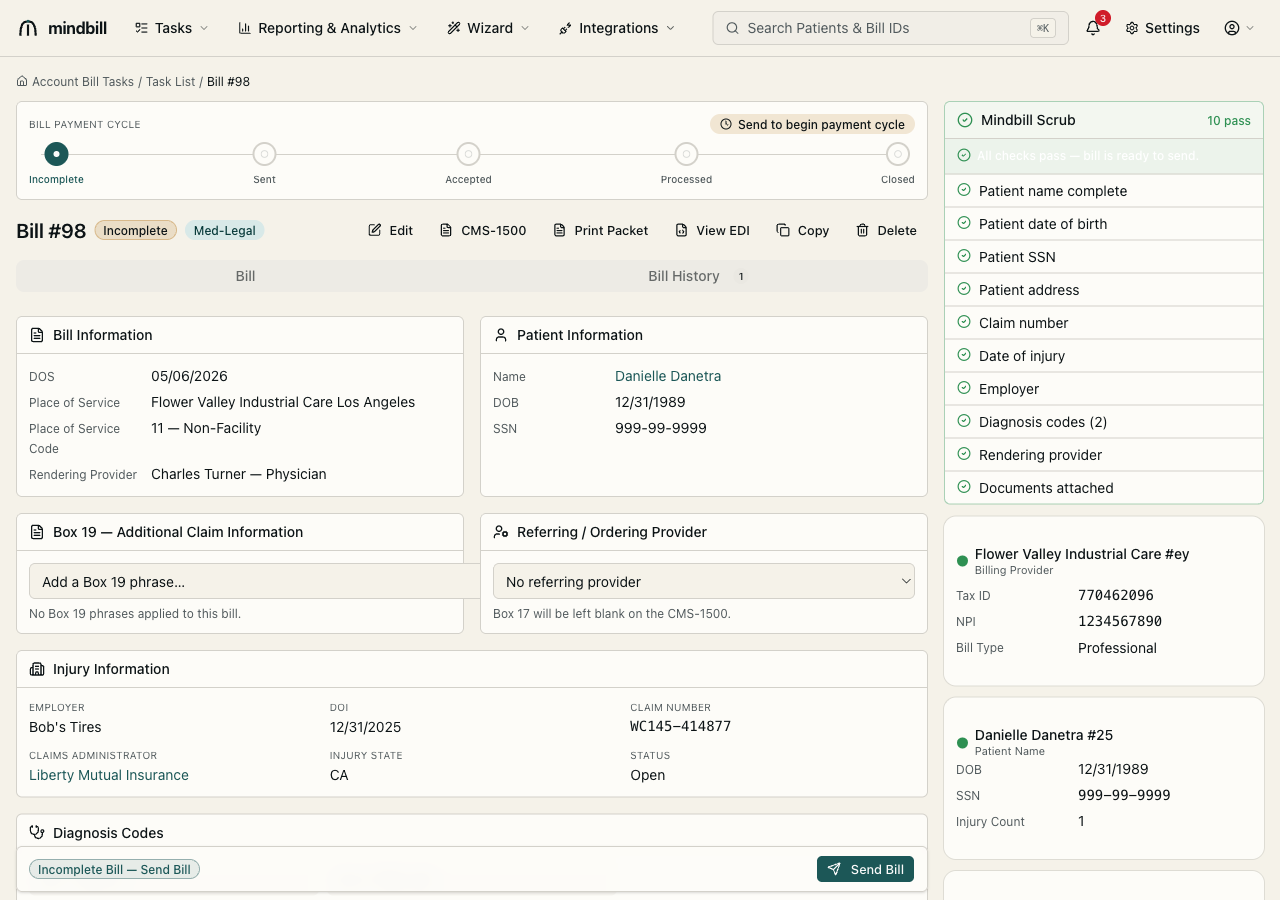
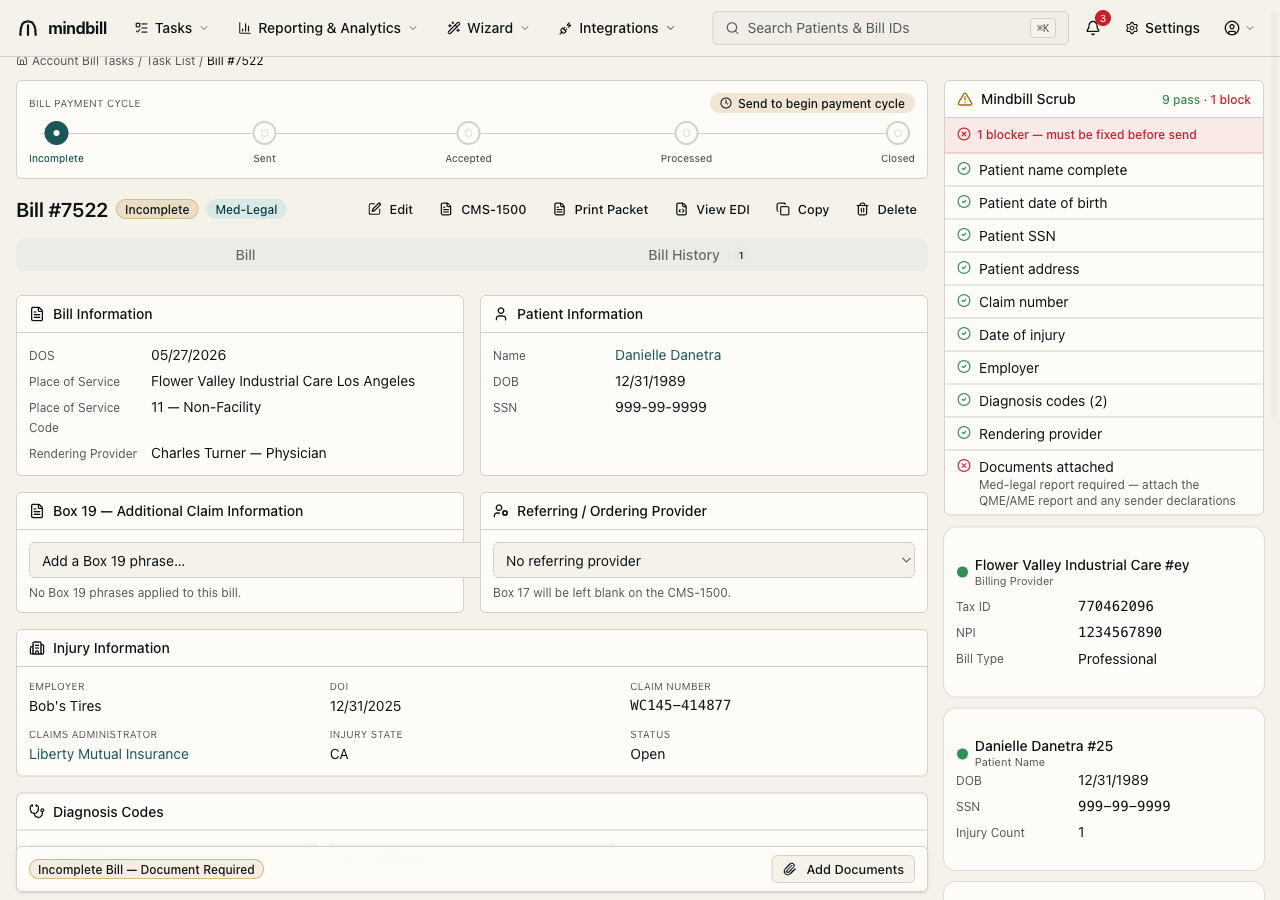
The Mindbill Scrub panel on the same page includes a Documents attached check. A med-legal bill with no report attached shows a red 'Med-legal report required' blocker — and you cannot send while a blocker stands. Once the J4 report is attached, that check turns green and the bill becomes sendable. This is the safety net that stops a bill from going out incomplete and bouncing back as a payer rejection or a silent delay.
Step 4 — Documents ride along with the submission
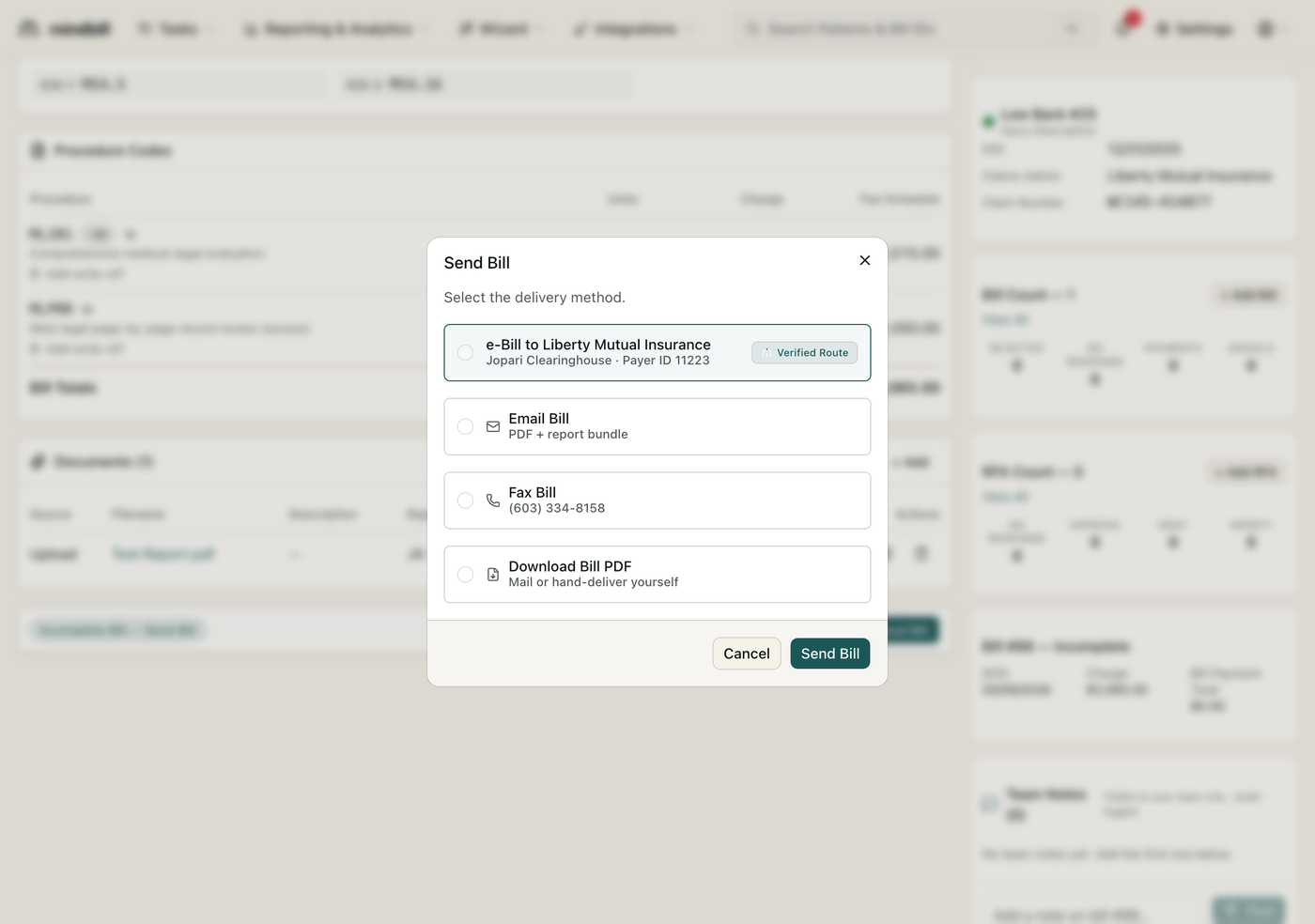
When you send, the attached documents travel with the bill — bundled into the e-bill submission for electronic payers, or assembled into the print packet with a cover sheet for paper-only payers. Either way, the report and declaration arrive with the bill rather than as a separate mailing the payer can claim never to have received, keeping the supporting evidence and the charge inseparable.