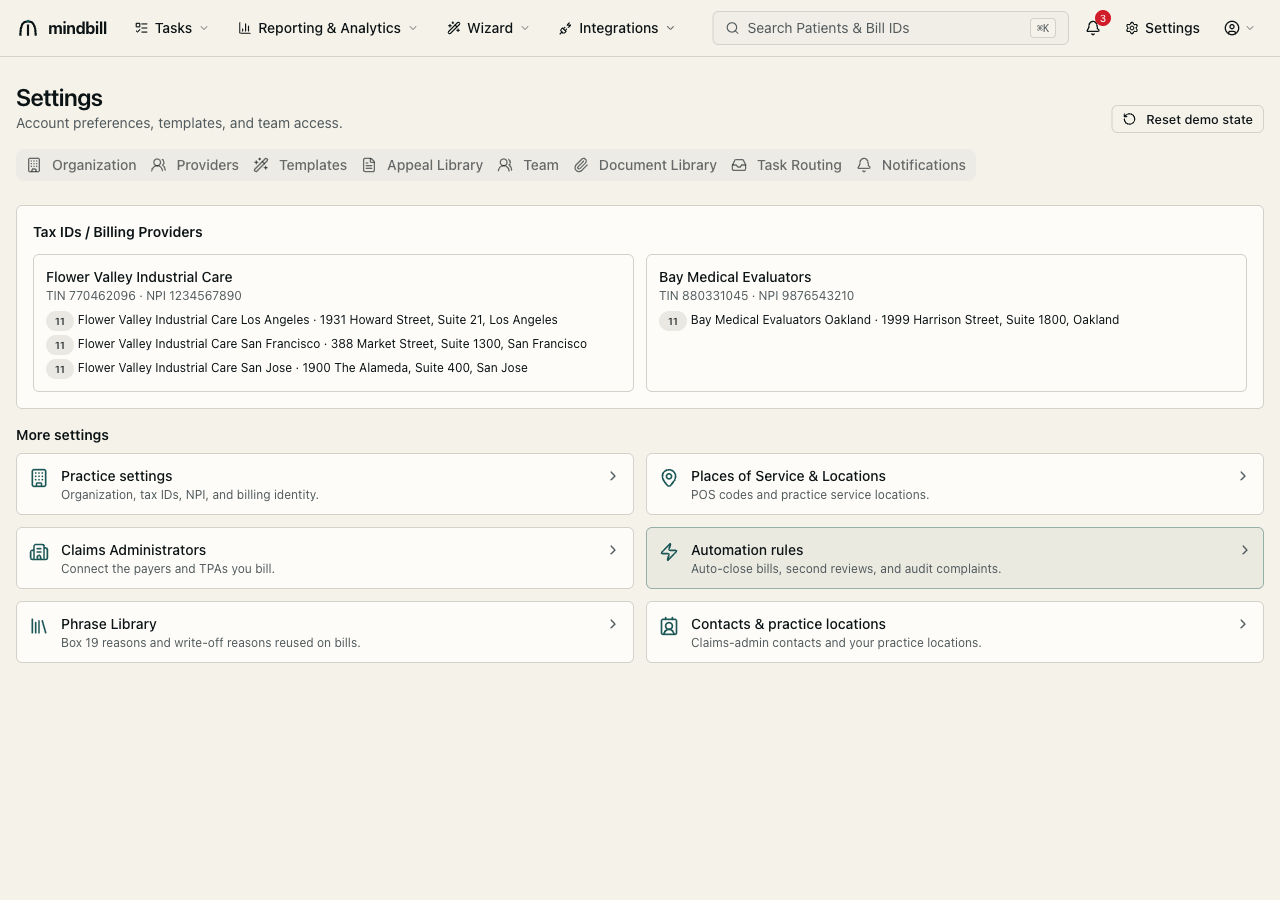
Step 1 — Find providers and locations in settings
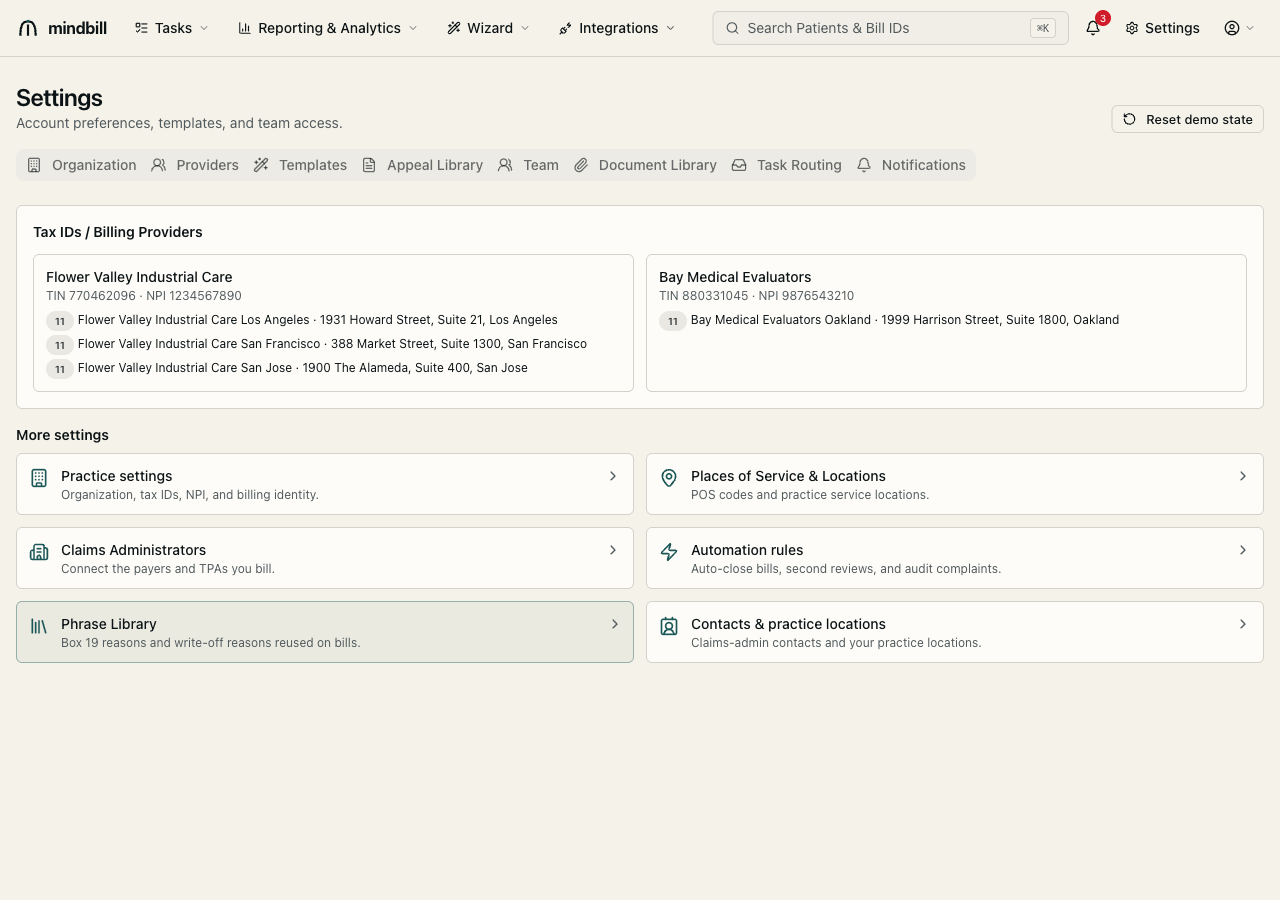
Open Settings. The hub exposes the relevant sections: Providers (rendering and referring), Practice settings (the billing identity and tax IDs), and Places of Service & Locations. The Tax IDs / Billing Providers panel at the top shows each billing entity and its locations (e.g. Flower Valley Industrial Care, TIN 770462096, with Los Angeles, San Francisco, and San Jose sites). Configure each once and every future bill inherits it.
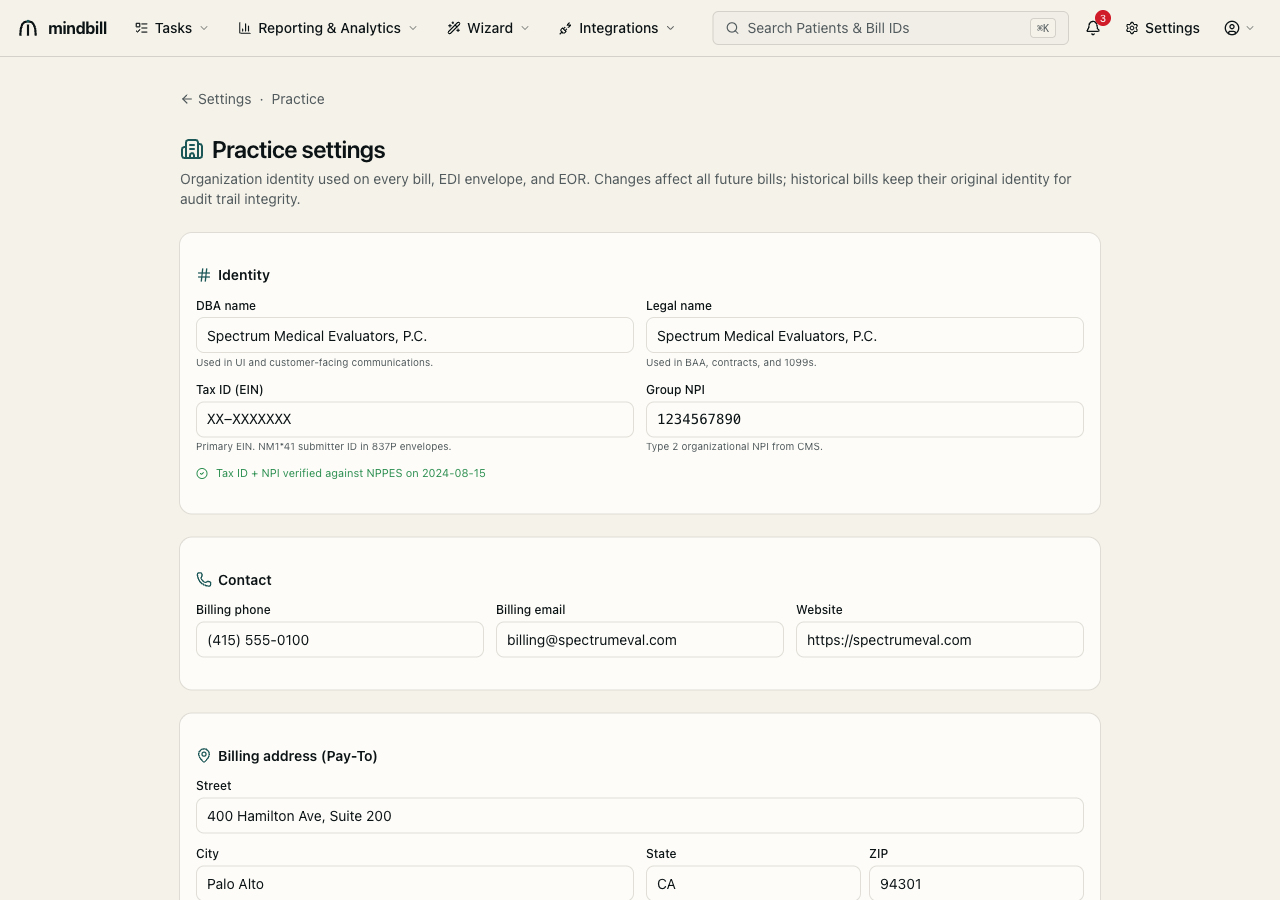
Step 2 — Set the billing and rendering identity
Practice settings (/settings/practice) holds the billing provider's legal name, tax ID (the NM1*41 submitter ID), group NPI, and Pay-To address — the identity carried in the 837P. Your rendering providers are configured with their own NPI and signature so the right individual NPI lands on each bill's service lines. If you bill under multiple entities, the multi-tax-ID section lets you maintain each one separately.
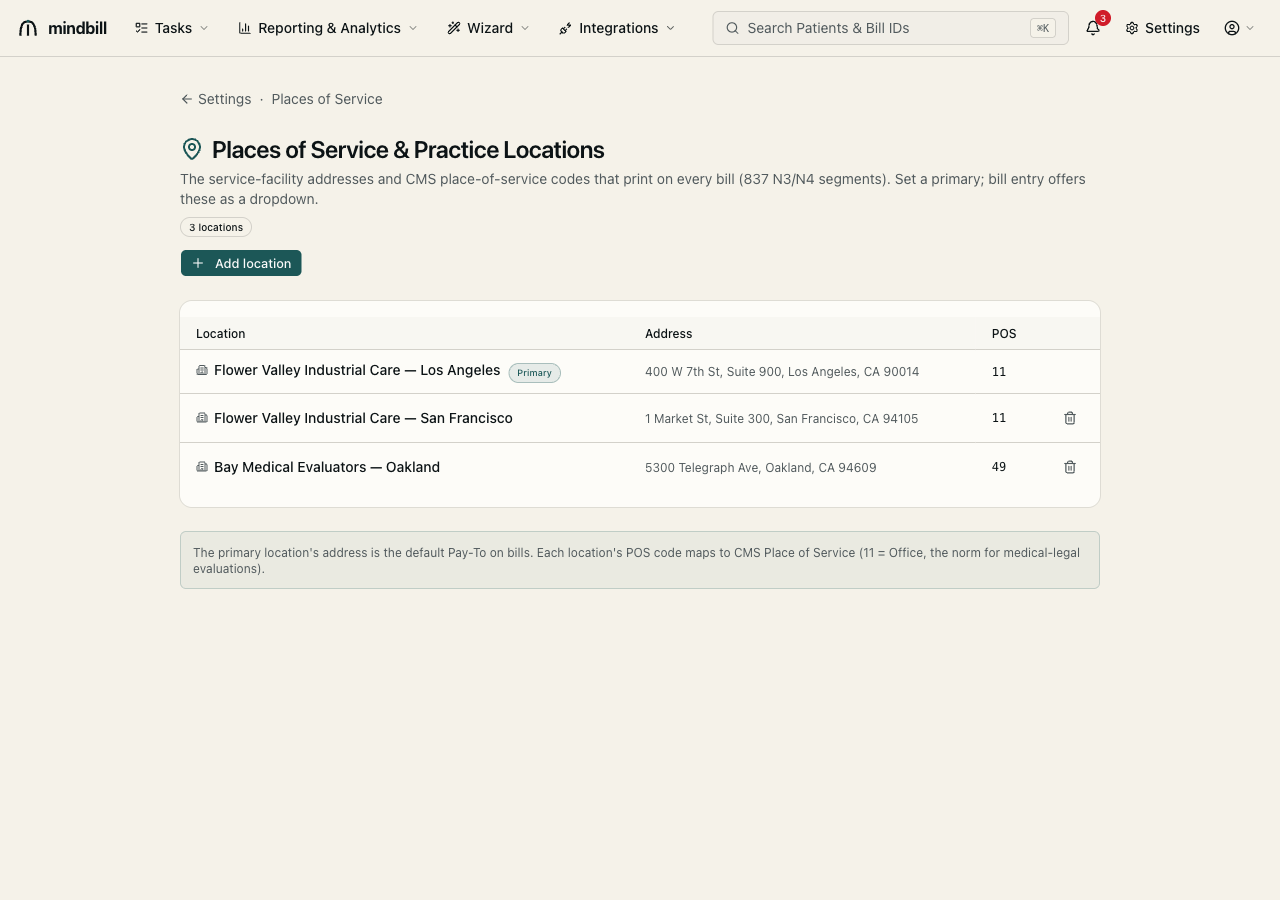
Step 3 — Configure places of service
Places of Service & Locations (/settings/places-of-service) lists each practice location with its address and CMS Place of Service code — 11 (Office) is the norm for medical-legal, 49 (Independent Clinic) and others as applicable. One location is marked Primary, and its address is the default Pay-To on bills. Each location maps to a POS code, so when you pick a location in bill entry the correct POS rides onto the 837 automatically.
Step 4 — Why it prevents downstream rejections
Because providers and locations are pre-configured, bill entry can only offer valid combinations — you select a rendering provider and a place of service from dropdowns rather than typing free-text. That means a bill is never missing the rendering provider NPI or carrying a mismatched POS code, the kind of defect that triggers a 277CA rejection or a 'bill not found'-style bounce. Set it up once and the structural fields are correct on every bill thereafter.