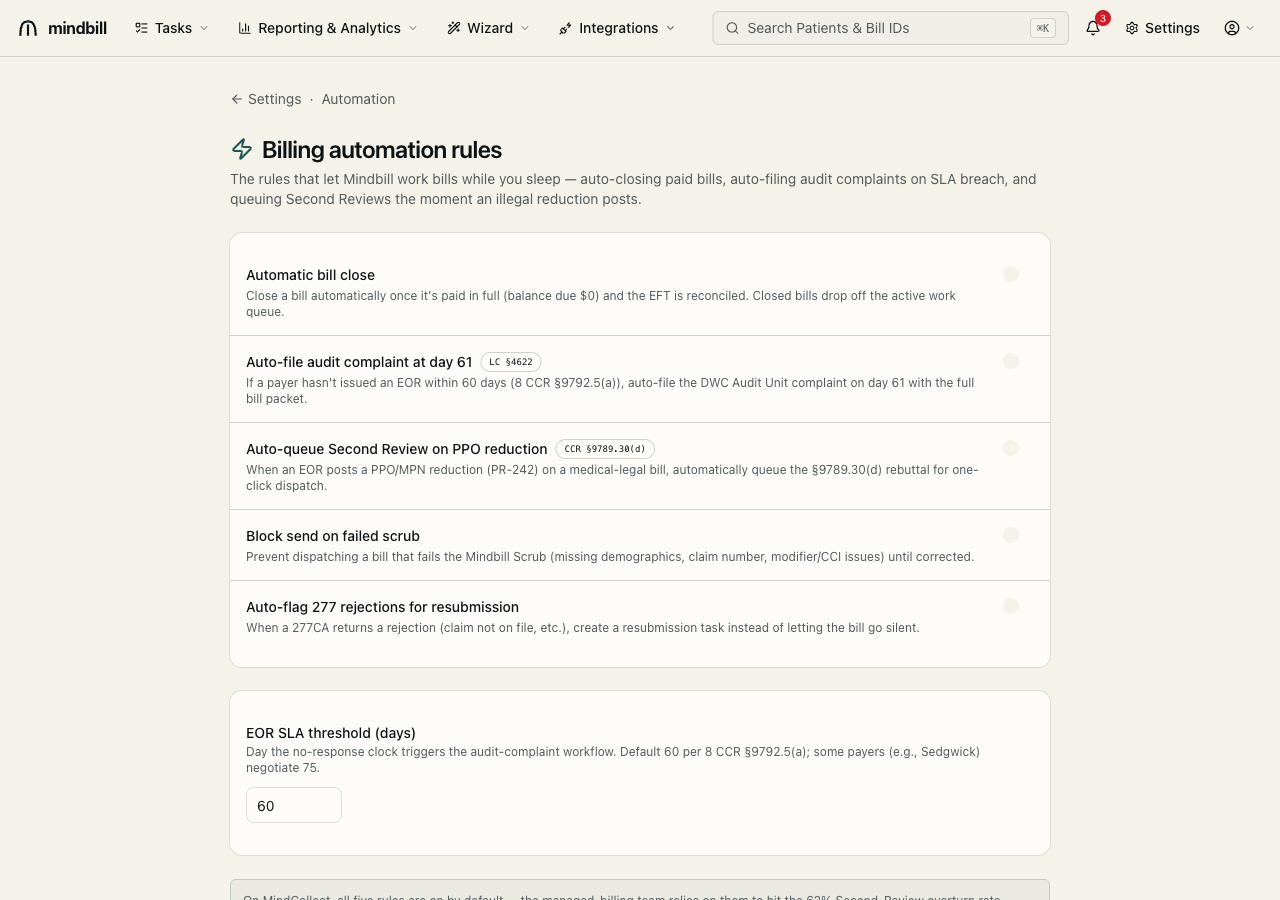
Step 1 — Open the settings hub
Open Settings. The hub groups everything an admin configures — Practice settings (organization, tax IDs, NPI, billing identity), Places of Service & Locations, Claims Administrators, Automation rules, Phrase Library, Contacts, Providers, Templates, the Appeal Library, the Team, and the Document Library. The top panel shows your Tax IDs / Billing Providers and their locations (e.g. Flower Valley Industrial Care, TIN 770462096 · NPI 1234567890, with three service locations). Each tile deep-links to its section.
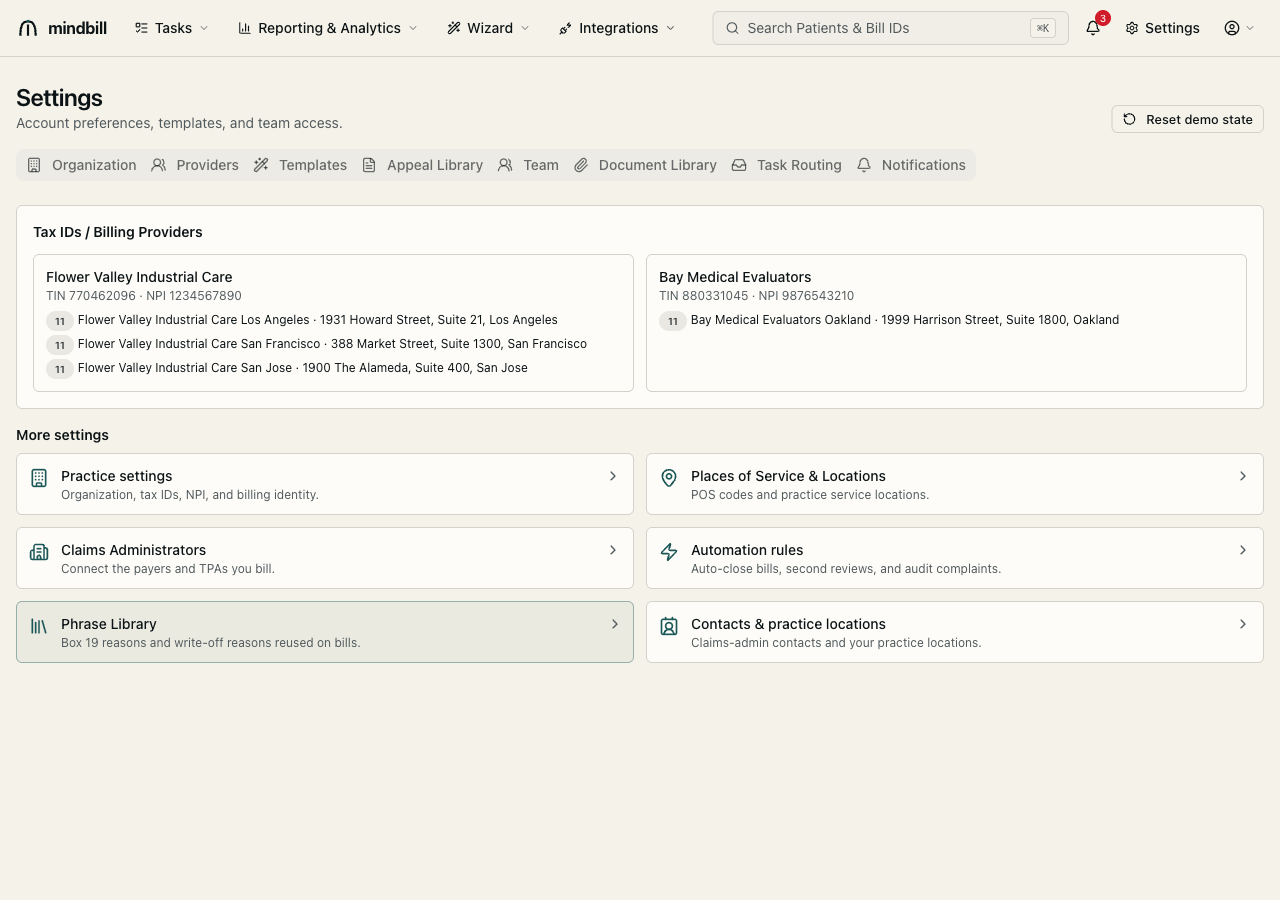
Step 2 — Set your billing identity (Practice settings)
Open Practice settings (/settings/practice) to configure the legal billing identity printed on every bill and carried in the EDI envelope: organization name, tax ID (the NM1*41 submitter ID), group NPI, website, and the Billing (Pay-To) address. That Pay-To address is what prints on every bill and EOR and populates the 837P N3/N4 segments. If you bill under more than one entity, the multi-entity / multi-tax-ID section lets you add additional billing providers, each with its own TIN.
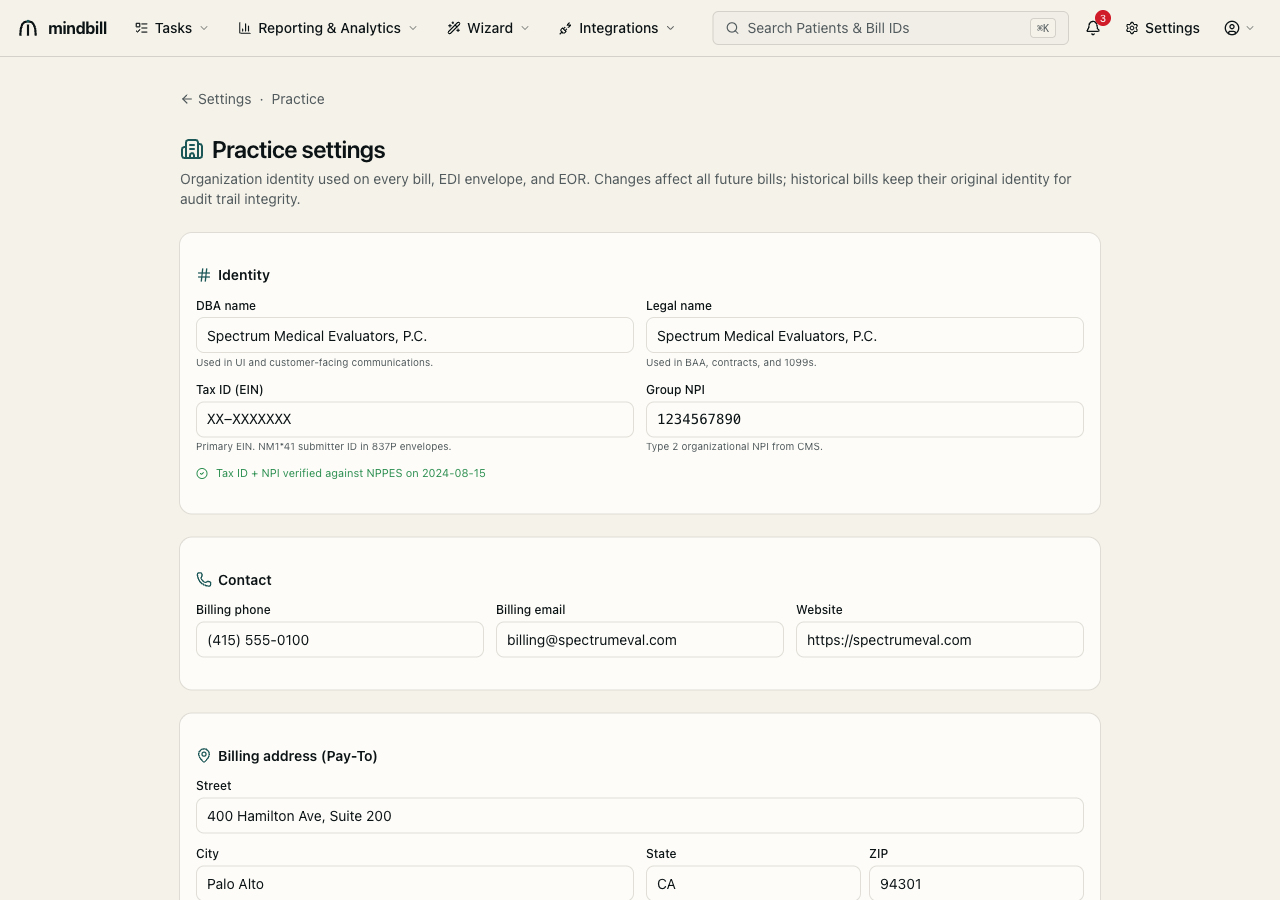
Step 3 — Configure the Phrase Library (Box 19 + write-offs)
The Phrase Library (/settings/phrase-library) holds the reusable text that appears on bills — the Box 19 picker (CMS-1500 Additional Claim Information) and the per-line write-off reasons in bill detail. Editing a phrase here keeps it in sync everywhere, so the whole team uses consistent, defensible language (e.g. 'Comprehensive medical-legal evaluation per LC §4060/§4062' or 'Report exceeds 200 pages of records reviewed — see MLPRR line'). Standardizing this language is what keeps Box 19 reasons from becoming a source of payer pushback.
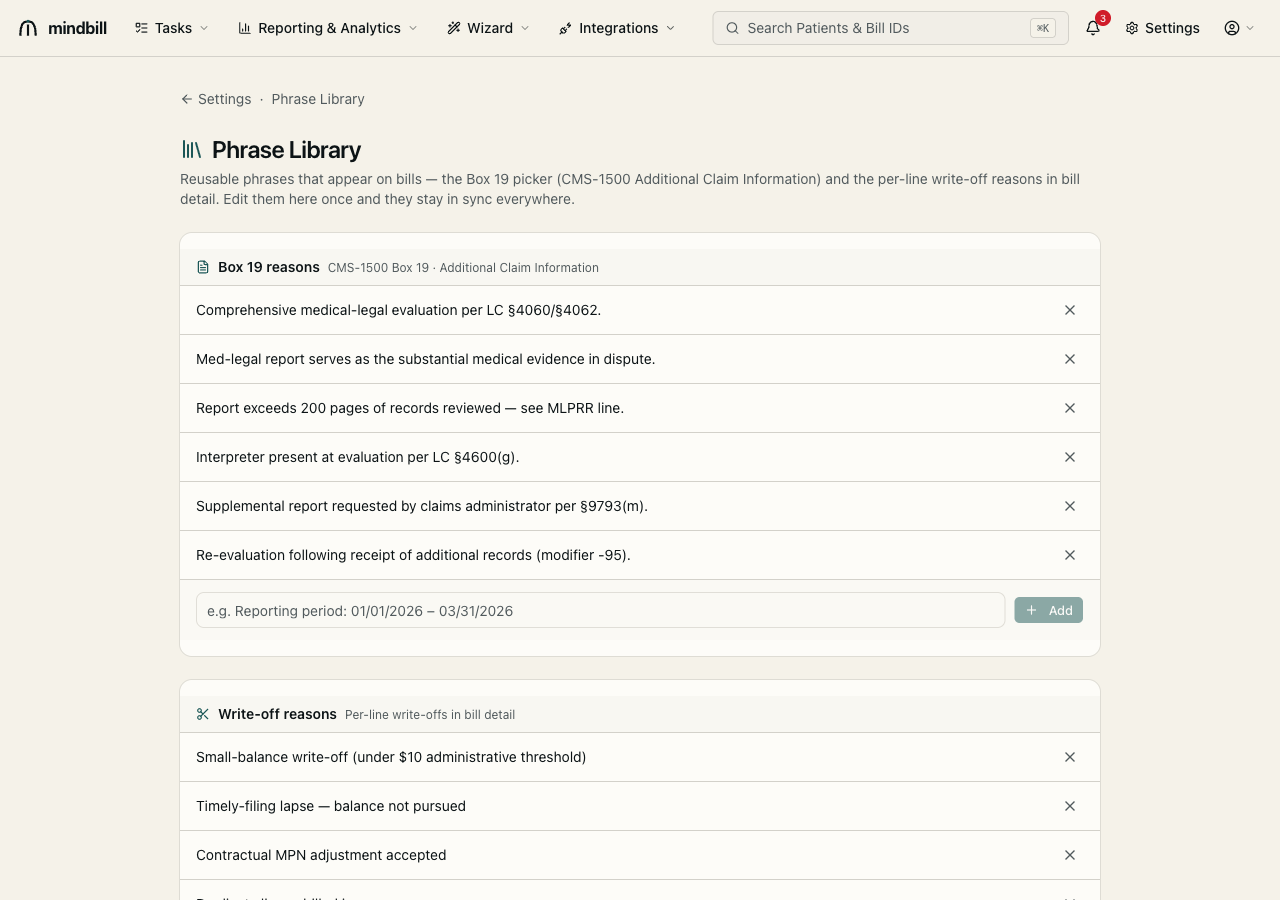
Step 4 — Turn on Automation rules
Automation rules (/settings/automation) let Mindbill work bills while you sleep: auto-close a bill once it's paid in full and the EFT is reconciled, auto-file a DWC audit complaint at day 61 when a payer blows the 60-day EOR deadline (LC §4622), and auto-queue a Second Review the moment an illegal reduction posts. Toggling these once turns the settings you configured above into a self-running pipeline — the scrub, the SLA clock, and the appeals playbooks all fire on their own.