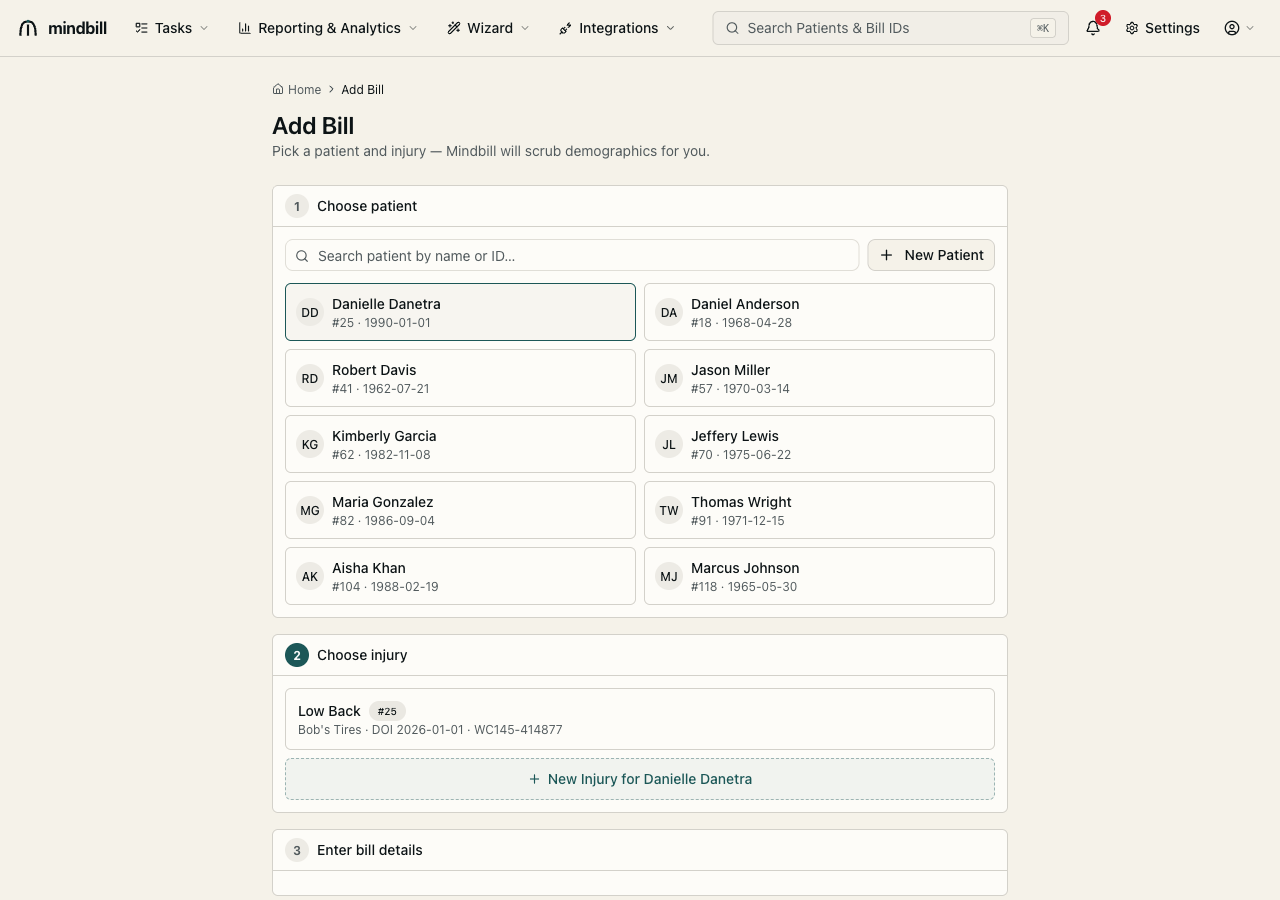
Step 1 — Search the patient directory
From Add Bill (/bills/new), the first step is Choose patient. The directory lists every injured worker in your account, each row showing name, patient ID, and date of birth. Type any part of a name or the numeric patient ID in the search box and the list filters instantly. If the worker is already on file, click their card — Mindbill selects them and advances you to the injury step, no re-keying required.
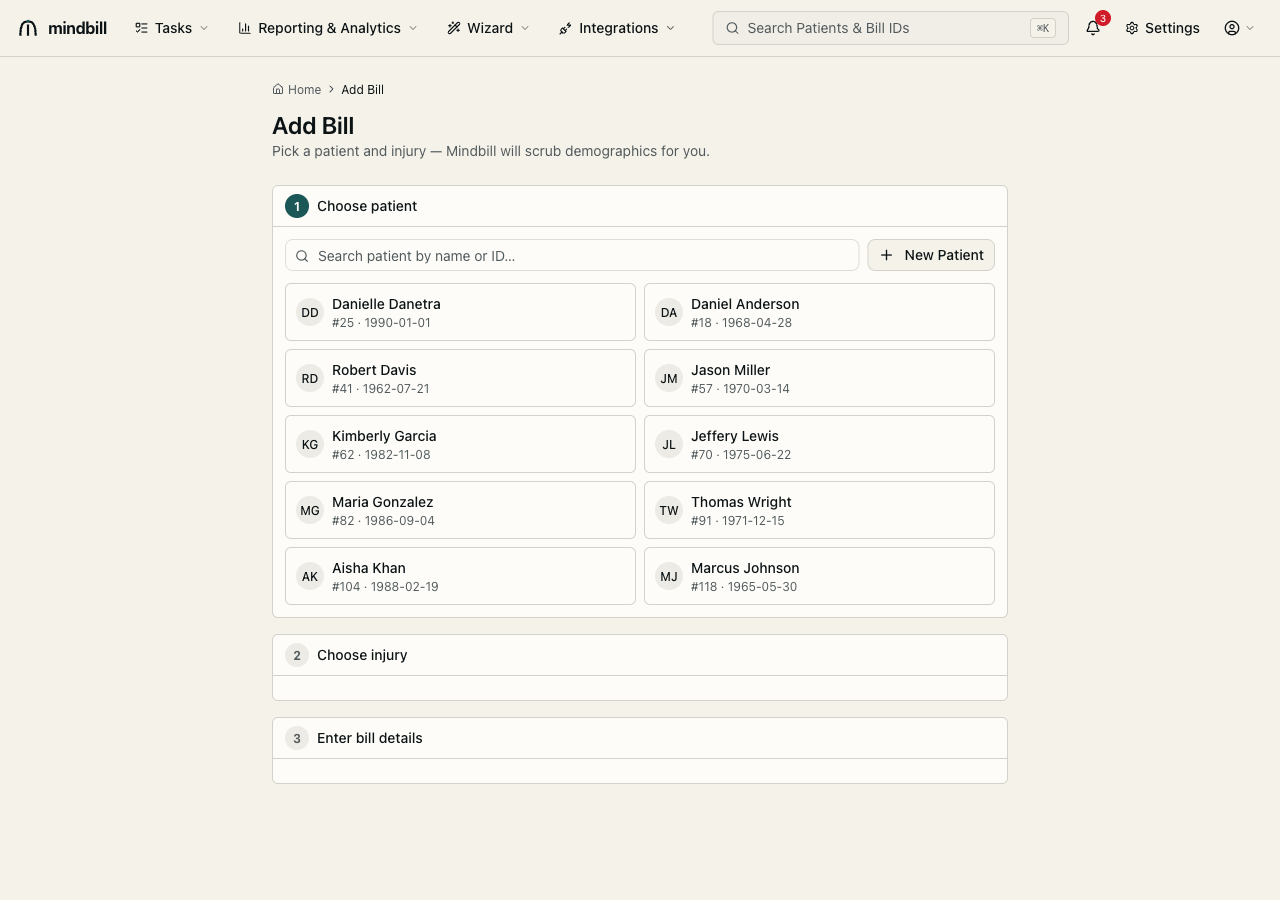
Step 2 — Open the New Patient form
If the worker isn't on file yet, click New Patient to open the Add Patient form. Enter first and last name, date of birth, gender, SSN, phone, and address. The form is tied to the billing entity — note the Billing under Tax ID selector at the bottom, which stamps every future bill for this patient with the correct submitter TIN (here, Flower Valley Industrial Care, TIN 770462096). Required fields are marked with an asterisk.
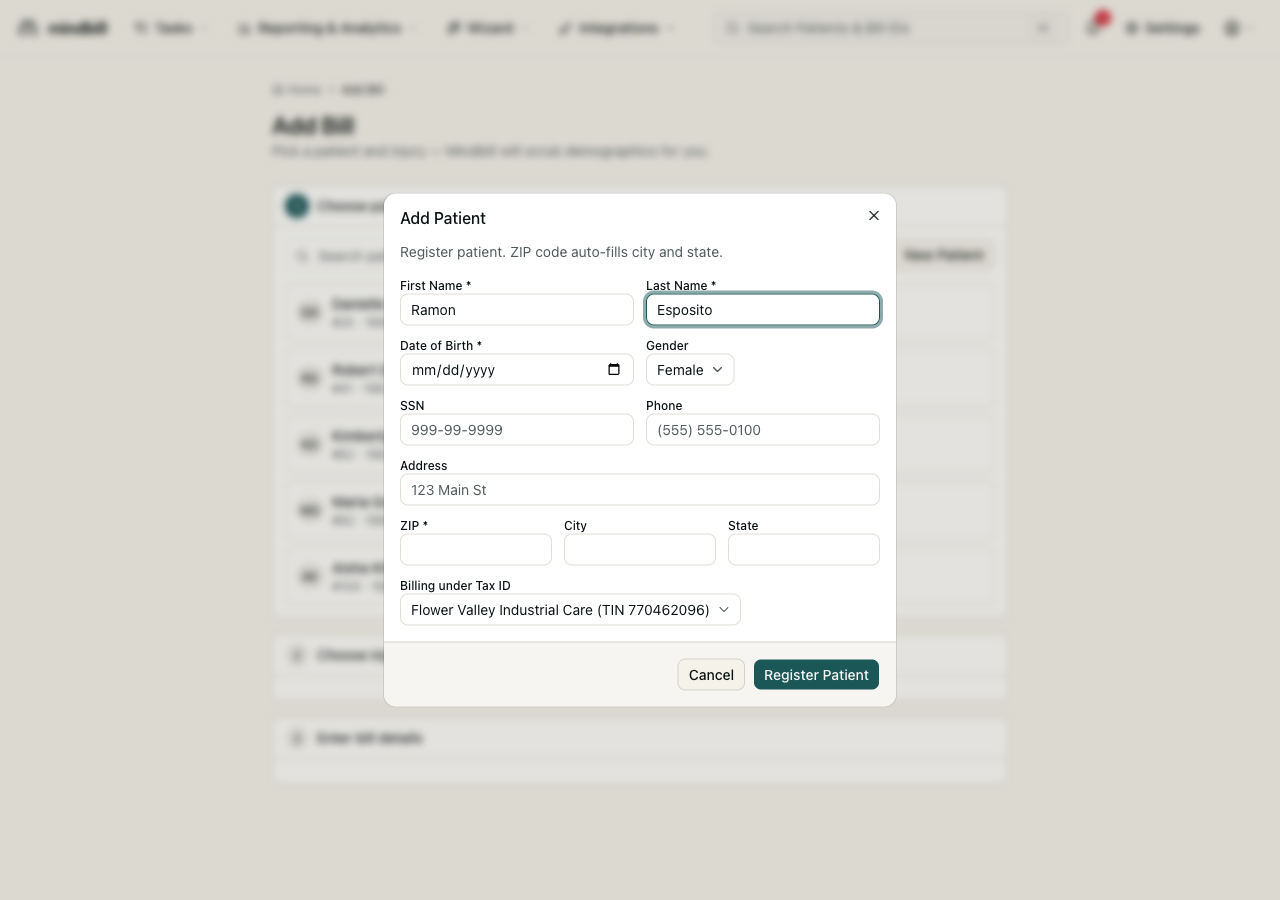
Step 3 — Let Mindbill scrub the demographics
Mindbill validates as you type: ZIP auto-fills city and state, the SSN and phone formats are checked, and the date of birth is range-validated. This is the same scrub that runs before every send, so catching a transposed digit here means it never becomes a 277CA rejection later. Click Register Patient and the worker is saved, selected, and ready — you drop straight into the Choose injury step with the new patient already chosen.