The full lifecycle at a glance
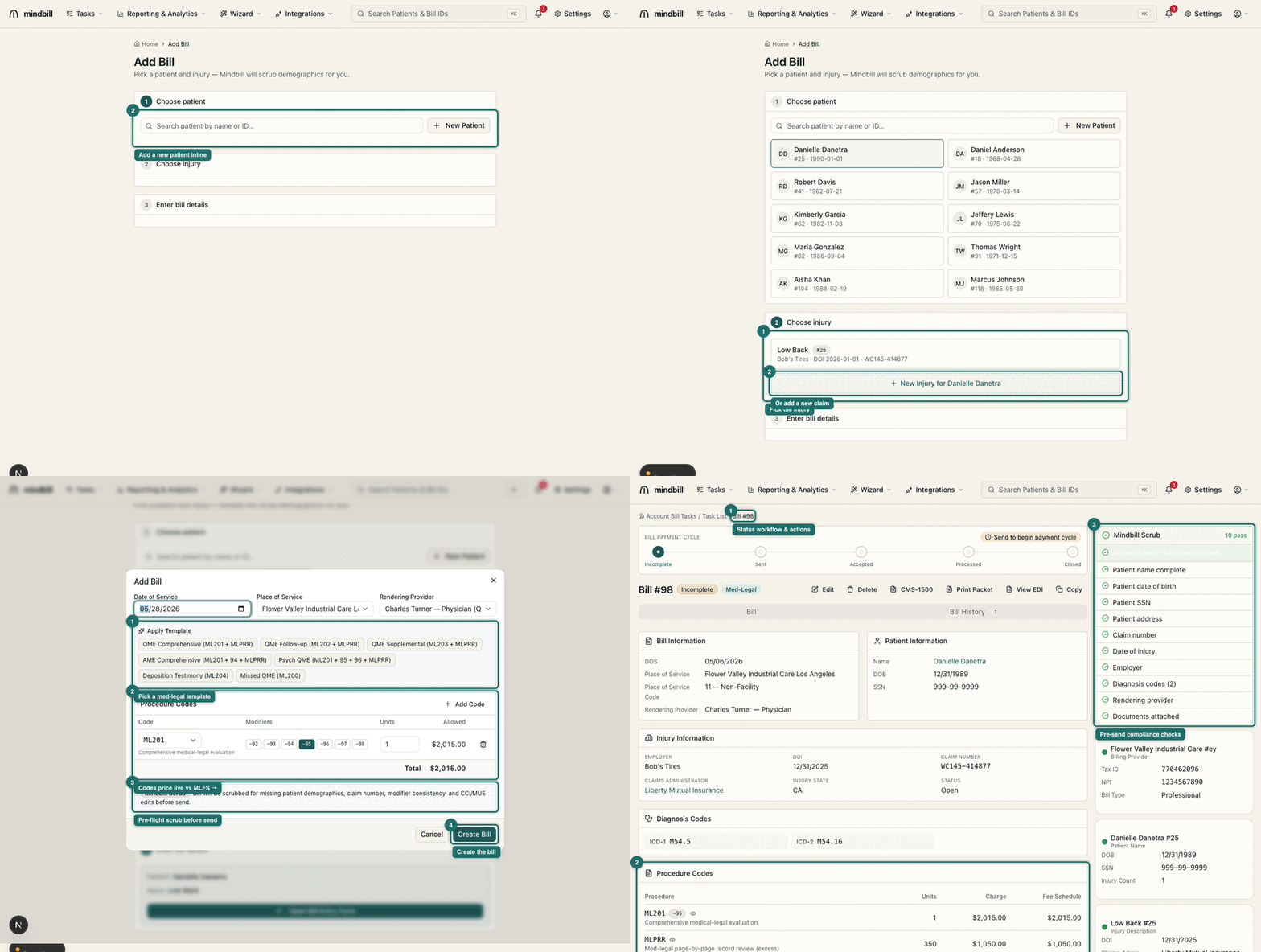
Add Bill is a guided four-step flow: choose patient → choose injury → enter bill details → review the created bill. Each step carries forward the data from the one before it, so demographics, claim facts, and diagnosis codes populate automatically rather than being re-keyed. This animation shows the whole flow end-to-end; the steps below break down each screen in turn.
Step 1 — Choose the patient
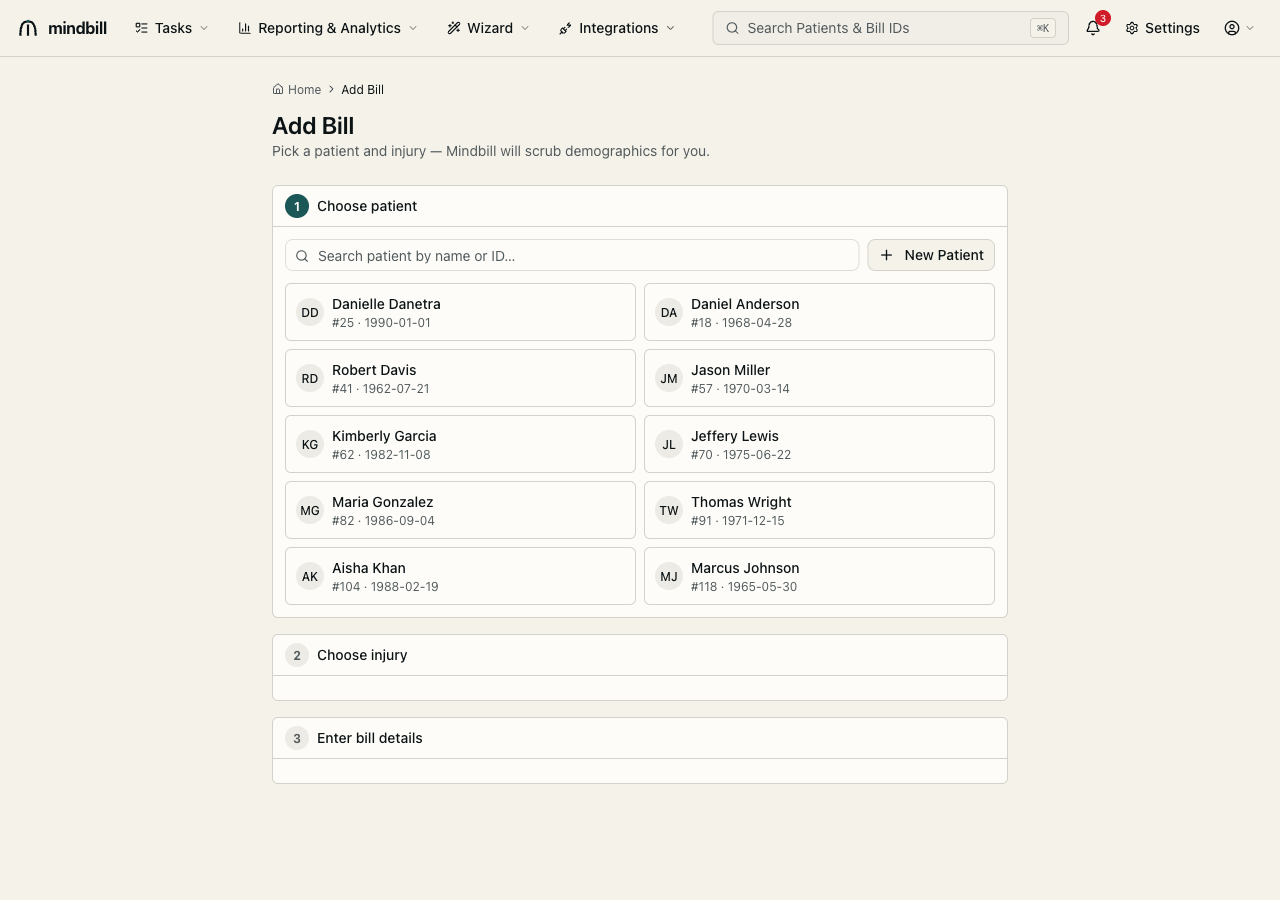
From Add Bill (/bills/new), the Choose patient directory lists every injured worker with name, patient ID, and date of birth. Search by name or ID and click the worker's card to select them. Mindbill scrubs demographics automatically, so you never re-key an address or DOB. Don't see the patient? Click New Patient to add them inline without leaving the flow.
Step 2 — Choose the injury
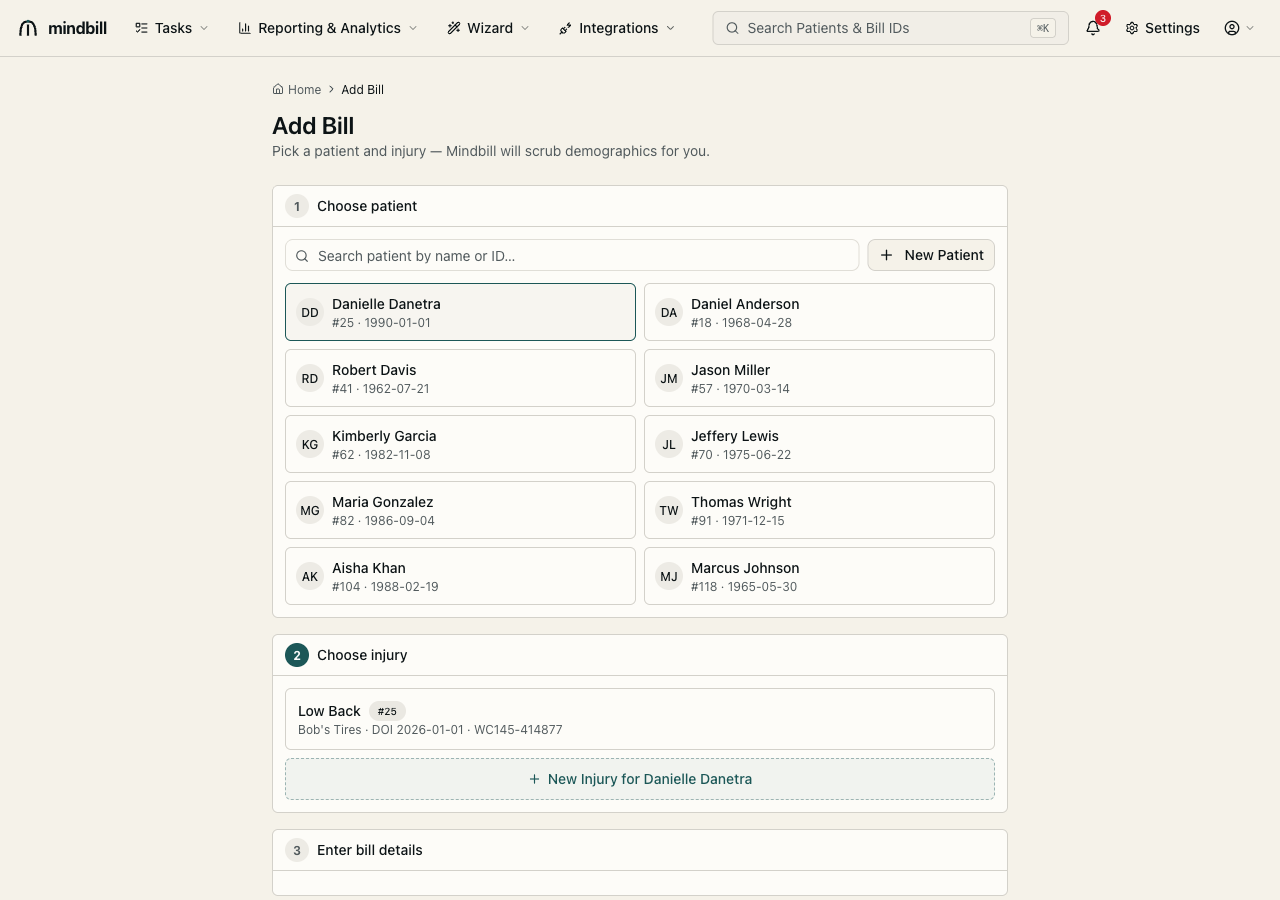
Every bill is filed under one injury — one date of injury, one claim number, one claims administrator. Each injury card shows the description, employer, DOI, and claim number (e.g. Low Back · Bob's Tires · DOI 2026-01-01 · WC145-414877). Pick the relevant injury for this patient, or click New Injury if this is a fresh claim. The ICD-10 diagnosis codes attached to the injury flow automatically onto the bill.
Step 3 — Enter bill details
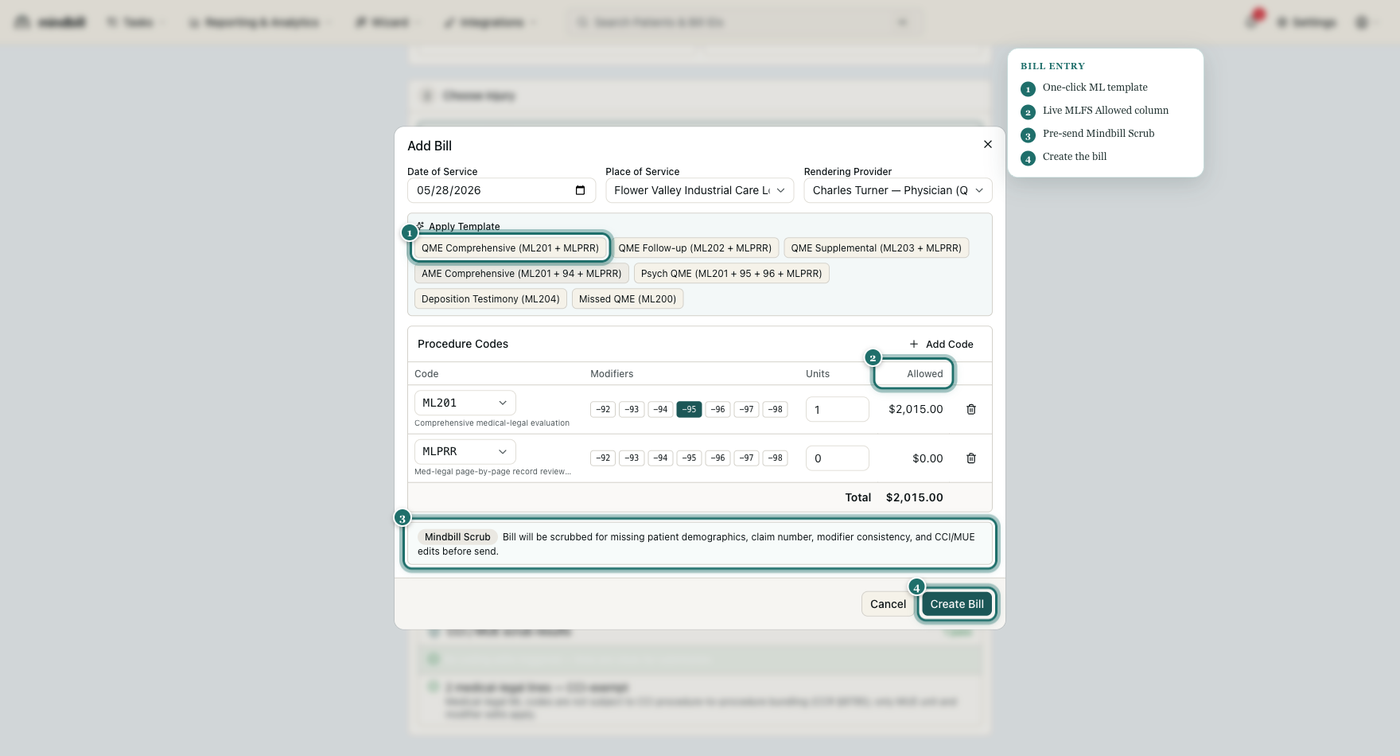
The bill entry form opens with the rendering provider and a one-click template row. Apply a template — QME Comprehensive (ML201 + MLPRR), AME Comprehensive (ML201 + 94 + MLPRR), Psych QME (ML201 + 95 + 96 + MLPRR), Deposition Testimony (ML204), or Missed QME (ML200) — to pre-fill the right ML codes and modifiers in one click. Each procedure line prices live against the California Medical-Legal Fee Schedule in the Allowed column (ML201 = $2,015.00). The Mindbill Scrub note at the bottom confirms the bill will be checked for missing demographics, claim number, modifier consistency, and CCI/MUE edits before send. Click Create Bill when the line items are right.
Step 4 — Review the created bill
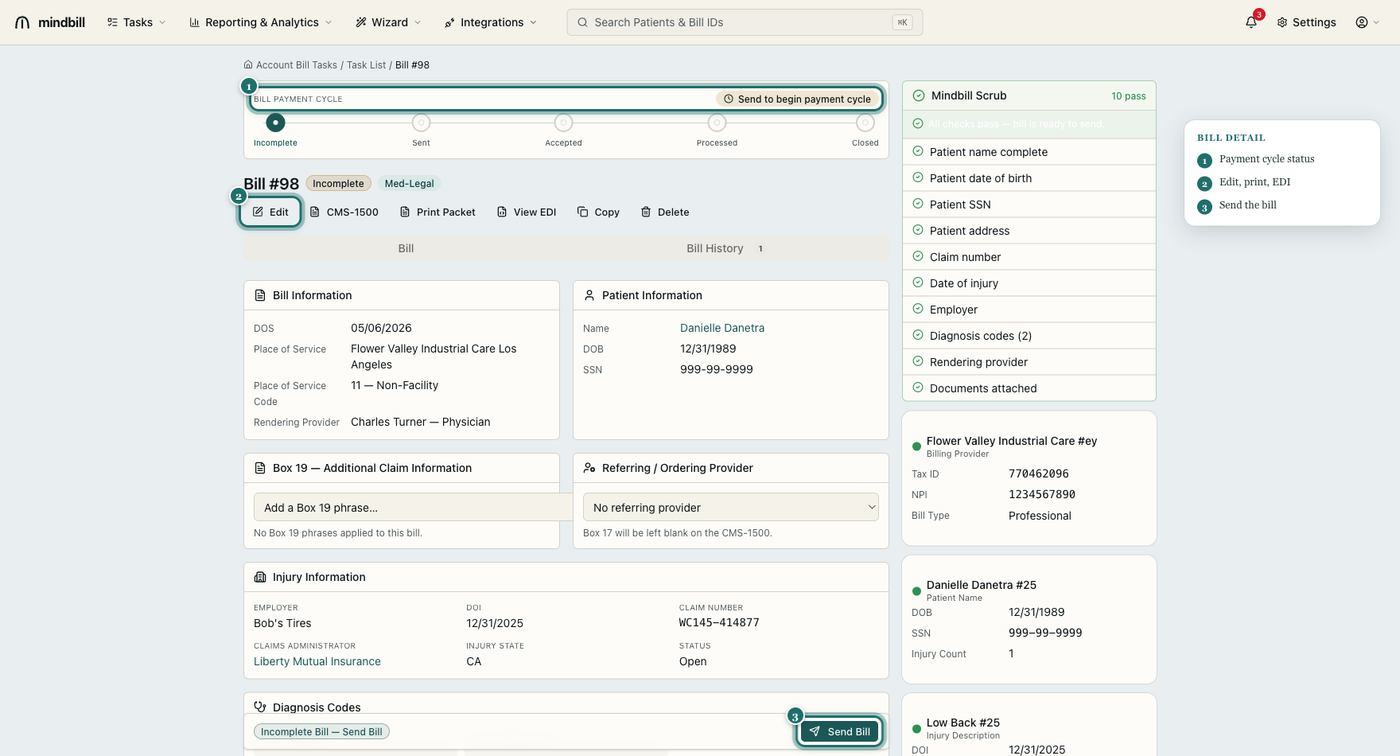
Create Bill opens the bill detail page. Across the top is the payment cycle (Incomplete → Sent → Accepted → Processed → Closed) with the current status badged. Below it sit the bill, patient, and injury panels, the diagnosis and procedure codes, the totals against the fee schedule, and the configurable Box 19 phrase library. The bill starts in Incomplete — the next step is to clear the Mindbill Scrub and send it. From here you can also Edit, print the CMS-1500, view the EDI, copy, or delete the bill.